Archivero is in early access — your sources, PDFs and citations in one library.Request early access →
Archivero/guides/
APAMLAHarvardThesis writing
Subscribe
Archivero/guides/Request early access →

Guides

APA styleMLA styleHarvard referencingThesis writing

Compare

APA 6th vs 7thMLA 8th vs 9thHarvard vs APAThesis vs dissertation

Product

FeaturesEarly access

Resources

DocsCheat sheetsNewsletter

Company

ContactStatus ↗
© 2025–2026 Ernesto F. GonzálezGuidesDocsContactPrivacyTerms
Guides/Citations/MLA Citation Style

MLA Header & Page Numbers

How to set up the MLA running header with your last name and page number, including step-by-step instructions for Word and Google Docs.

6 min readMLA

Key Takeaways

  • The MLA header contains your last name and the page number, separated by a single space, in the upper-right corner of every page:
    • González 1
  • The header uses the same font and size as the rest of your paper (typically 12 pt Times New Roman).
  • Page numbering starts at 1 on the first page and runs consecutively through the Works Cited page.
  • The header sits 0.5 inches from the top of the page, within the 1-inch top margin.
  • Do not add "p." or "page" before the number — just the last name and the number.
  • The first-page heading block (name, instructor, course, date) is separate from the running header — both appear on page 1.

On this page

1 of 14
Key TakeawaysWhat Goes in the MLA HeaderWhat About Multiple Last Names?First Page vs. Subsequent PagesSetting Up the Header in Microsoft WordWindowsMacCommon Word IssuesSetting Up the Header in Google DocsHeader in LaTeXShould the Header Appear on the Works Cited Page?What If I Have a Title Page?Common MistakesWhat's Next
All MLA guides →

Every page of an MLA paper carries a running header in the upper-right corner: your last name followed by the page number. This header appears on every page — including the first page and the Works Cited page — with no exceptions.

The running header is one of the simplest MLA requirements, but it's also one of the most commonly missed — especially on the first page, where students sometimes assume it isn't needed. Here's how to set it up correctly in every major word processor.

What Goes in the MLA Header

The header contains exactly two elements:

  1. Your last name — as it appears in your first-page heading block
  2. The page number — Arabic numeral, automatically generated

These two elements sit on the same line, separated by a single space, flush right:

González 1

That's it. No title, no date, no course name, no "Page" or "p." prefix. MLA keeps the header minimal so it doesn't distract from the text.

What About Multiple Last Names?

Use the full last name as you write it on your paper:

García López 3

Kim-Nguyen 7

O'Connor 12

First Page vs. Subsequent Pages

Unlike APA, MLA does not differentiate between the first page and subsequent pages for the header. The running header appears identically on every page:

PageHeader Content
First pageGonzález 1
Second pageGonzález 2
Works Cited pageGonzález 8

The first page also has the heading block (your name, instructor, course, and date) in the upper left — but the running header still appears in the upper right simultaneously.

Setting Up the Header in Microsoft Word

Windows

  1. Open the header area: Double-click the top of any page, or go to Insert → Header → Blank.
  2. Align right: On the Header & Footer toolbar, click Align Right (or press Ctrl+R).
  3. Type your last name followed by a space.
  4. Insert the page number: Go to Insert → Page Number → Current Position → Plain Number. Word inserts an auto-updating page number.
  5. Set the position: On the Header & Footer toolbar, set the Header from Top value to 0.5" (half an inch).
  6. Match the font: Select all text in the header and set it to the same font and size as your body text (e.g., 12 pt Times New Roman).
  7. Close the header: Double-click in the body of the paper or click Close Header and Footer.

Mac

The steps are nearly identical:

  1. Insert → Header & Footer → Header → Blank
  2. Press ⌘+R to align right
  3. Type your last name + space
  4. Insert → Page Numbers → Current Position
  5. Adjust header position in Format → Document → Margins → Header: 0.5"
  6. Match the font

Common Word Issues

  • "Different First Page" checkbox: Make sure this is unchecked. If enabled, Word hides the header on page 1.
  • Header linked to previous section: If you're using section breaks, ensure headers are linked across sections so the page numbering remains consecutive.

Setting Up the Header in Google Docs

  1. Open the header: Go to Insert → Headers & footers → Header.
  2. Uncheck "Different first page" if it's checked — MLA headers are the same on every page.
  3. Align right: Click the Right align button in the toolbar (or press Ctrl+Shift+R / ⌘+Shift+R).
  4. Type your last name followed by a space.
  5. Insert the page number: Go to Insert → Page numbers → scroll down and choose the numbered option that inserts at the cursor position. Alternatively, go to Insert → Page numbers → More options and configure from there.
  6. Set the margin: Go to Format → Page setup → set the top margin to 1 inch. Google Docs positions the header within the margin automatically, but you can go to Format → Headers & footers → set Header margin to 0.5".
  7. Match the font: Select the header text and set it to your paper's font and size.

Header in LaTeX

If you're writing your paper in LaTeX, use the fancyhdr package:

latex
\usepackage{fancyhdr}
\pagestyle{fancy}
\fancyhf{}                          % Clear all headers/footers
\rhead{González \thepage}           % Last name + page number, right-aligned
\renewcommand{\headrulewidth}{0pt}  % Remove the decorative line

Place this in your preamble. The \headrulewidth line removes the horizontal rule that fancyhdr adds by default — MLA headers have no line.

Should the Header Appear on the Works Cited Page?

Yes. The running header continues uninterrupted through the Works Cited page (and any appendix or endnotes). Your last name and the page number appear in the upper-right corner, same as every other page:

González 8

The Works Cited page is not a separate document — it's the final page(s) of your paper, and page numbering is consecutive.

What If I Have a Title Page?

MLA does not require a title page. But if your instructor asks for one, the title page is usually not counted in the page numbering — page 1 starts on the first page of body text. Check your instructor's specific requirements, because this is not standardized by MLA.

For more on this, see MLA Title Page & First Page Format.

Common Mistakes

  1. Omitting the header on the first page. The running header appears on every page, including page 1. Don't check "Different First Page" unless your instructor specifically asks for it.
  2. Writing "Page" or "p." before the number. The header is just your last name and the number — no labels.
  3. Putting the header on the left side. MLA headers are right-aligned, always.
  4. Using a different font in the header. The header text should match your paper's body font and size.
  5. Starting page numbering at 0 or 2. Page 1 is the first page of your paper — not page 0, and not page 2 (even if you have a title page).
  6. Skipping the header on the Works Cited page. The Works Cited is still part of your paper. The running header continues.

What's Next

Now that your header is set up, check the rest of your paper formatting:

  • MLA Title Page & First Page Format — how to format the heading block and title on page 1
  • MLA Format Paper — the complete paper layout guide
  • MLA Format Example Paper — see the header in context within a full paper

Archivero helps you focus on writing rather than formatting — save your sources to your library, and properly formatted MLA citations are generated automatically, ready to paste into your paper.
All MLA guides →
← PreviousMLA Images, Tables & FiguresNext →MLA Title Page & First Page Format

More on MLA style

The standard in literature, the humanities and cultural studies. The author–page system, Works Cited entries and the 9th edition's container model.

View all 27 guides →
6 sections·6 min readMLAMLA Title Page & First Page Format11 sections·7 min readMLAHow to Cite a Poem or Song in MLA Format10 sections·10 min readMLAHow to Cite a Play in MLA Format8 sections·6 min readMLAHow to Cite an Indirect Source in MLA

Your sources, PDFs and citations in one library

  • Import a Zotero, Mendeley or EndNote library — or a folder of PDFs
  • Highlight and annotate without leaving the source
  • Cite in any CSL style as you write, with one shared library for your lab
Request early accessSee the product →
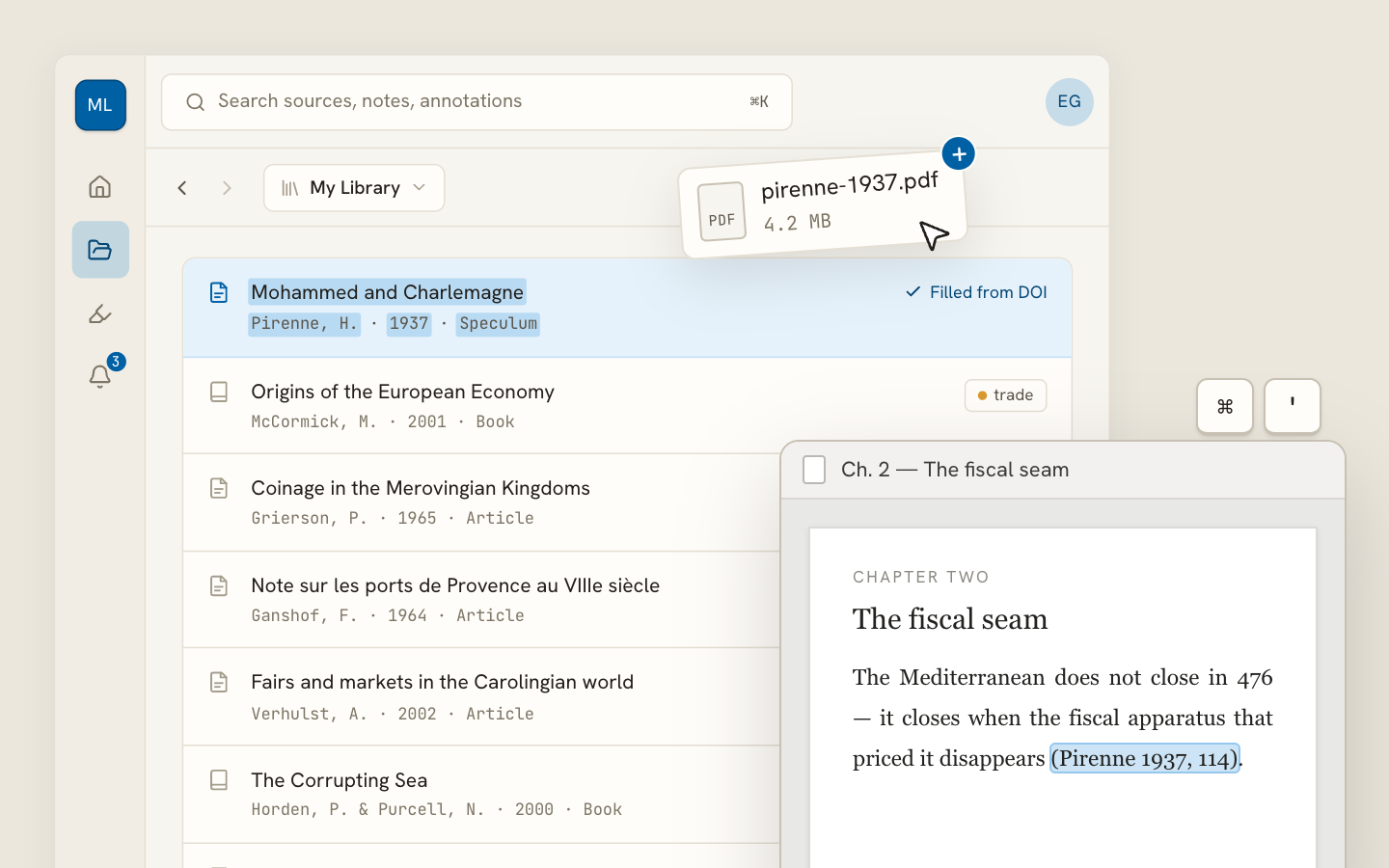
Archivero library view with a source list and an open PDF

Your weekly research workflow, in one email

One tested workflow, three links, no filler — every Tuesday.

Unsubscribe in one click. We never share your address.

Guides/Citations/MLA Citation Style

MLA Header & Page Numbers

How to set up the MLA running header with your last name and page number, including step-by-step instructions for Word and Google Docs.

6 min readMLA

Key Takeaways

  • The MLA header contains your last name and the page number, separated by a single space, in the upper-right corner of every page:
    • González 1
  • The header uses the same font and size as the rest of your paper (typically 12 pt Times New Roman).
  • Page numbering starts at 1 on the first page and runs consecutively through the Works Cited page.
  • The header sits 0.5 inches from the top of the page, within the 1-inch top margin.
  • Do not add "p." or "page" before the number — just the last name and the number.
  • The first-page heading block (name, instructor, course, date) is separate from the running header — both appear on page 1.

On this page

1 of 14
Key TakeawaysWhat Goes in the MLA HeaderWhat About Multiple Last Names?First Page vs. Subsequent PagesSetting Up the Header in Microsoft WordWindowsMacCommon Word IssuesSetting Up the Header in Google DocsHeader in LaTeXShould the Header Appear on the Works Cited Page?What If I Have a Title Page?Common MistakesWhat's Next
All MLA guides →

Every page of an MLA paper carries a running header in the upper-right corner: your last name followed by the page number. This header appears on every page — including the first page and the Works Cited page — with no exceptions.

The running header is one of the simplest MLA requirements, but it's also one of the most commonly missed — especially on the first page, where students sometimes assume it isn't needed. Here's how to set it up correctly in every major word processor.

What Goes in the MLA Header

The header contains exactly two elements:

  1. Your last name — as it appears in your first-page heading block
  2. The page number — Arabic numeral, automatically generated

These two elements sit on the same line, separated by a single space, flush right:

González 1

That's it. No title, no date, no course name, no "Page" or "p." prefix. MLA keeps the header minimal so it doesn't distract from the text.

What About Multiple Last Names?

Use the full last name as you write it on your paper:

García López 3

Kim-Nguyen 7

O'Connor 12

First Page vs. Subsequent Pages

Unlike APA, MLA does not differentiate between the first page and subsequent pages for the header. The running header appears identically on every page:

PageHeader Content
First pageGonzález 1
Second pageGonzález 2
Works Cited pageGonzález 8

The first page also has the heading block (your name, instructor, course, and date) in the upper left — but the running header still appears in the upper right simultaneously.

Setting Up the Header in Microsoft Word

Windows

  1. Open the header area: Double-click the top of any page, or go to Insert → Header → Blank.
  2. Align right: On the Header & Footer toolbar, click Align Right (or press Ctrl+R).
  3. Type your last name followed by a space.
  4. Insert the page number: Go to Insert → Page Number → Current Position → Plain Number. Word inserts an auto-updating page number.
  5. Set the position: On the Header & Footer toolbar, set the Header from Top value to 0.5" (half an inch).
  6. Match the font: Select all text in the header and set it to the same font and size as your body text (e.g., 12 pt Times New Roman).
  7. Close the header: Double-click in the body of the paper or click Close Header and Footer.

Mac

The steps are nearly identical:

  1. Insert → Header & Footer → Header → Blank
  2. Press ⌘+R to align right
  3. Type your last name + space
  4. Insert → Page Numbers → Current Position
  5. Adjust header position in Format → Document → Margins → Header: 0.5"
  6. Match the font

Common Word Issues

  • "Different First Page" checkbox: Make sure this is unchecked. If enabled, Word hides the header on page 1.
  • Header linked to previous section: If you're using section breaks, ensure headers are linked across sections so the page numbering remains consecutive.

Setting Up the Header in Google Docs

  1. Open the header: Go to Insert → Headers & footers → Header.
  2. Uncheck "Different first page" if it's checked — MLA headers are the same on every page.
  3. Align right: Click the Right align button in the toolbar (or press Ctrl+Shift+R / ⌘+Shift+R).
  4. Type your last name followed by a space.
  5. Insert the page number: Go to Insert → Page numbers → scroll down and choose the numbered option that inserts at the cursor position. Alternatively, go to Insert → Page numbers → More options and configure from there.
  6. Set the margin: Go to Format → Page setup → set the top margin to 1 inch. Google Docs positions the header within the margin automatically, but you can go to Format → Headers & footers → set Header margin to 0.5".
  7. Match the font: Select the header text and set it to your paper's font and size.

Header in LaTeX

If you're writing your paper in LaTeX, use the fancyhdr package:

latex
\usepackage{fancyhdr}
\pagestyle{fancy}
\fancyhf{}                          % Clear all headers/footers
\rhead{González \thepage}           % Last name + page number, right-aligned
\renewcommand{\headrulewidth}{0pt}  % Remove the decorative line

Place this in your preamble. The \headrulewidth line removes the horizontal rule that fancyhdr adds by default — MLA headers have no line.

Should the Header Appear on the Works Cited Page?

Yes. The running header continues uninterrupted through the Works Cited page (and any appendix or endnotes). Your last name and the page number appear in the upper-right corner, same as every other page:

González 8

The Works Cited page is not a separate document — it's the final page(s) of your paper, and page numbering is consecutive.

What If I Have a Title Page?

MLA does not require a title page. But if your instructor asks for one, the title page is usually not counted in the page numbering — page 1 starts on the first page of body text. Check your instructor's specific requirements, because this is not standardized by MLA.

For more on this, see MLA Title Page & First Page Format.

Common Mistakes

  1. Omitting the header on the first page. The running header appears on every page, including page 1. Don't check "Different First Page" unless your instructor specifically asks for it.
  2. Writing "Page" or "p." before the number. The header is just your last name and the number — no labels.
  3. Putting the header on the left side. MLA headers are right-aligned, always.
  4. Using a different font in the header. The header text should match your paper's body font and size.
  5. Starting page numbering at 0 or 2. Page 1 is the first page of your paper — not page 0, and not page 2 (even if you have a title page).
  6. Skipping the header on the Works Cited page. The Works Cited is still part of your paper. The running header continues.

What's Next

Now that your header is set up, check the rest of your paper formatting:

  • MLA Title Page & First Page Format — how to format the heading block and title on page 1
  • MLA Format Paper — the complete paper layout guide
  • MLA Format Example Paper — see the header in context within a full paper

Archivero helps you focus on writing rather than formatting — save your sources to your library, and properly formatted MLA citations are generated automatically, ready to paste into your paper.

All MLA guides →
← PreviousMLA Images, Tables & FiguresNext →MLA Title Page & First Page Format

More on MLA style

The standard in literature, the humanities and cultural studies. The author–page system, Works Cited entries and the 9th edition's container model.

View all 27 guides →
6 sections·6 min readMLAMLA Title Page & First Page Format11 sections·7 min readMLAHow to Cite a Poem or Song in MLA Format10 sections·10 min readMLAHow to Cite a Play in MLA Format8 sections·6 min readMLAHow to Cite an Indirect Source in MLA

Your sources, PDFs and citations in one library

  • Import a Zotero, Mendeley or EndNote library — or a folder of PDFs
  • Highlight and annotate without leaving the source
  • Cite in any CSL style as you write, with one shared library for your lab
Request early accessSee the product →
Archivero library view with a source list and an open PDF

Your weekly research workflow, in one email

One tested workflow, three links, no filler — every Tuesday.

Unsubscribe in one click. We never share your address.